

In today’s world of digital technology, the WiFi network is the entry point to everything – your personal information as well as financial data, working files, and private conversations. When your network isn’t secured, cybercriminals and hackers have the ability to gain access to your personal information without a trace.
This guide will guide you through the 11 simplest practical and effective methods to protect your WiFi network as well as protect your personal data.
Why Is It Important to Secure Your WiFi Network?
An unsecured WiFi network is similar to leaving your front door open. Anyone in the vicinity can join your WiFi network and take your data, slow the speed of your internet, or utilize your network for illegal activities. Protecting your WiFi internet connection has become an option; it’s a must for all homes and businesses.
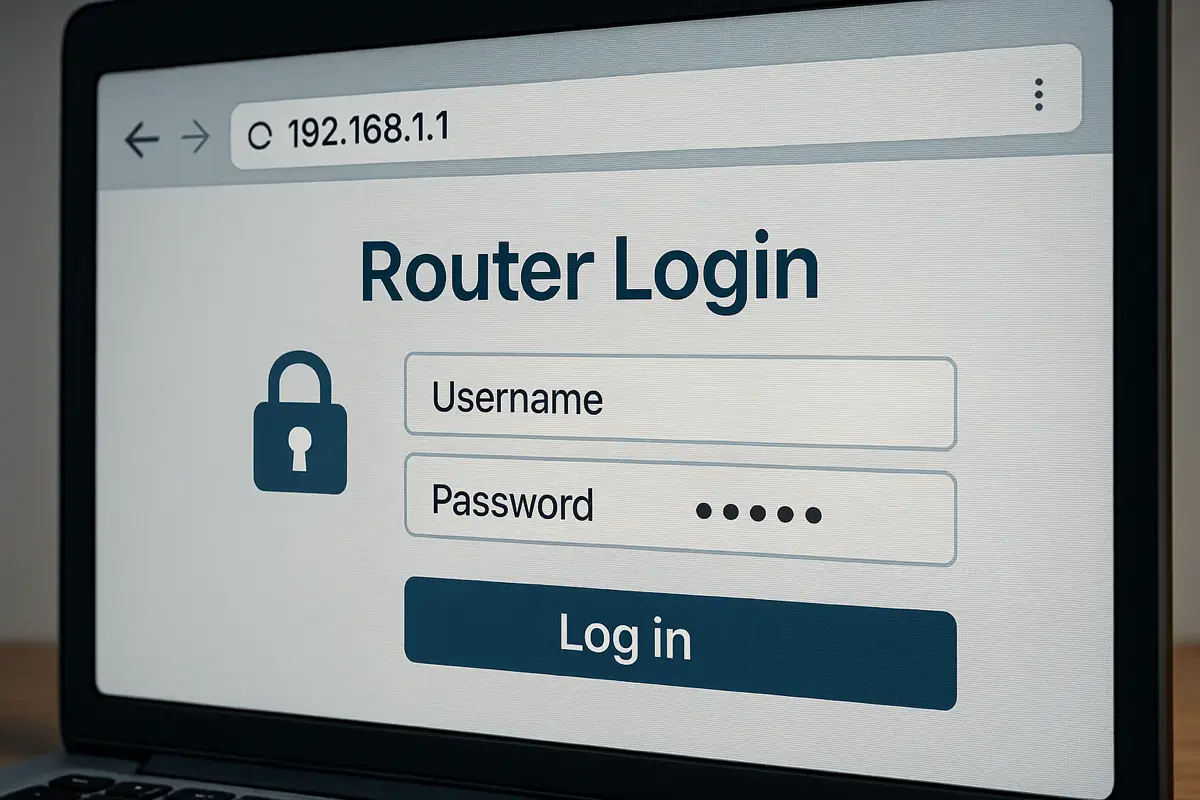
1. Change Your Default Router Username and Password
The first step in order to protect the security of your WiFi system is to modify the default credentials for login for your router. Most routers are equipped with basic default usernames, such as “admin,” and passwords like “password” or “1234.” They are widely known and are easy to guess.
| Router Model | Username | Password |
| Asus | admin | admin |
| Belkin | admin | (leave blank) |
| Cisco | admin, cisco | admin, cisco, or (leave blank) |
| Linksys | admin | admin |
| Netgear | admin | password, 1234, or (leave blank) |
| TP-Link | admin | admin |
| D-Link | admin | (leave blank) |
What should you do?
- Log in to the router settings
- Go to the admin panel.
- Change your username and password to something secure and unique
- Make use of a mixture of numbers, letters, and special characters
2. Use a Strong and Unique WiFi Password
An insecure password can be one of the main reasons WiFi networks are hacked. For security to be effective, you must secure the security of your WiFi network; you must make sure you have a password that is hard for anyone else to figure out.
Tips to create a secure password:
- Make sure to use at least 12 – 16 characters
- Mix lowercase and uppercase letters
- Use symbols and numbers such as @ #, @, $
- Be careful not to use your birthday, name, or other common phrases
3. Enable WPA3 or WPA2 Encryption
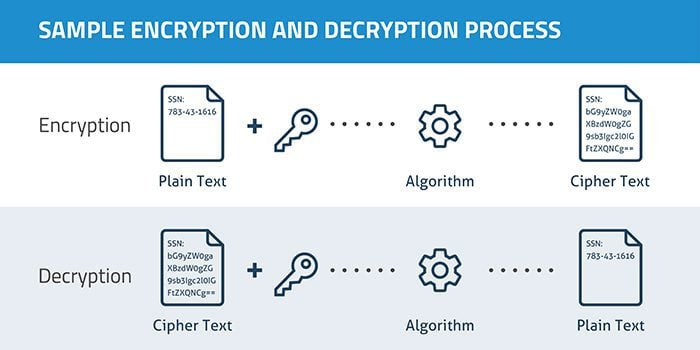
It is the basis of WiFi security. If you protect your WiFi network with the proper encryption, all information sent over the network is inaccessible to anyone else.
- WPA3 is the most recent and most secure encryption standard.
- WPA2 can still be trusted even in the event that WPA3 isn’t accessible.
- Do not use WEP or WPA because they’re outdated and can be easily compromised
Check the settings of your router and choose WPA3 as well as WPA2 under the wireless security section.
4. Keep Your Router Firmware Updated
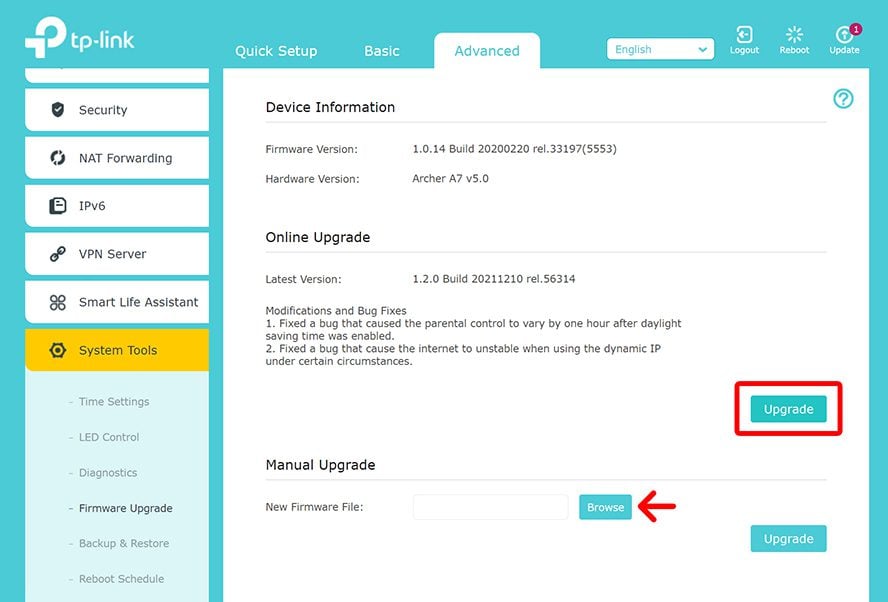
Manufacturers of routers regularly issue firmware updates to address security weaknesses. A router that is not updated poses the biggest security risk.
How do you upgrade:
- Log in to the admin panel of your router
- Find the software or firmware update section.
- Install the most recent update available
- Automate updates, if available
5. Disable WPS (WiFi Protected Setup)
WPS was created to facilitate connections between devices more conveniently; however, it has serious security vulnerabilities that are serious. Hackers could use a brute-force attack to crack WPS in order to gain access to your network.
The best option is to remove WPS completely in your router’s settings in order to secure your WiFi network more efficiently.
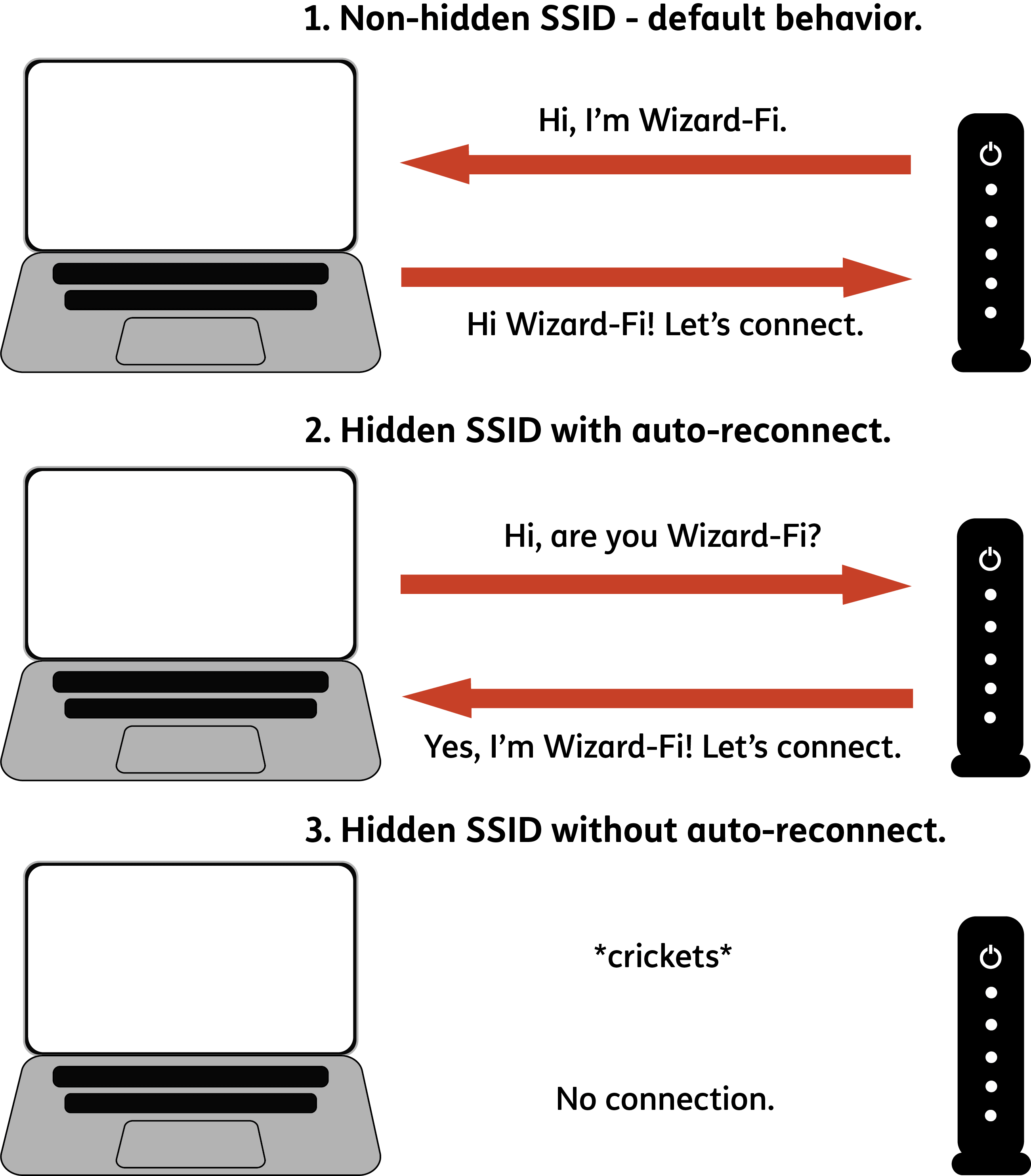
6. Hide Your WiFi Network Name (SSID)
By default, the WiFi network’s address (SSID) appears to anyone who is near. By hiding it, you add an extra layer of protection.
How do you hide your SSID:
- Check your router’s wireless settings.
- Choose the option to turn off SSID broadcast
- Save the settings
Your network is on the list of connections that are available that discourages unintentional access.
7. Set Up a Guest Network for Visitors
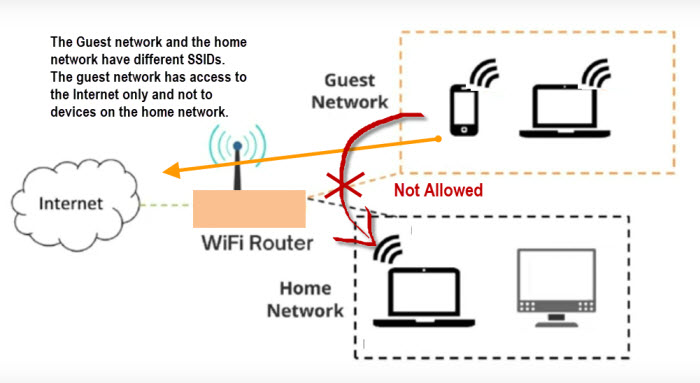
Don’t share your primary WiFi password with delivery personnel, guests, or other people who visit. Instead, establish an individual guest network.
Benefits of guest networks:
- Secures your network by keeping it secure and private
- Restricted access for guests to the internet, but only
- Guards your devices against external threats
The majority of modern routers allow guest network configuration directly via the administrator panel.
8. Monitor Connected Devices Regularly
Are you aware of the number of devices linked to the WiFi network today? Regularly checking connected devices can help you find any users who are not authorized.
Monitoring steps to take:
- Log into your router’s administrator panel.
- Check the devices connected or DHCP client list.
- Unknown or suspicious devices
9. Use a Firewall for Extra Protection
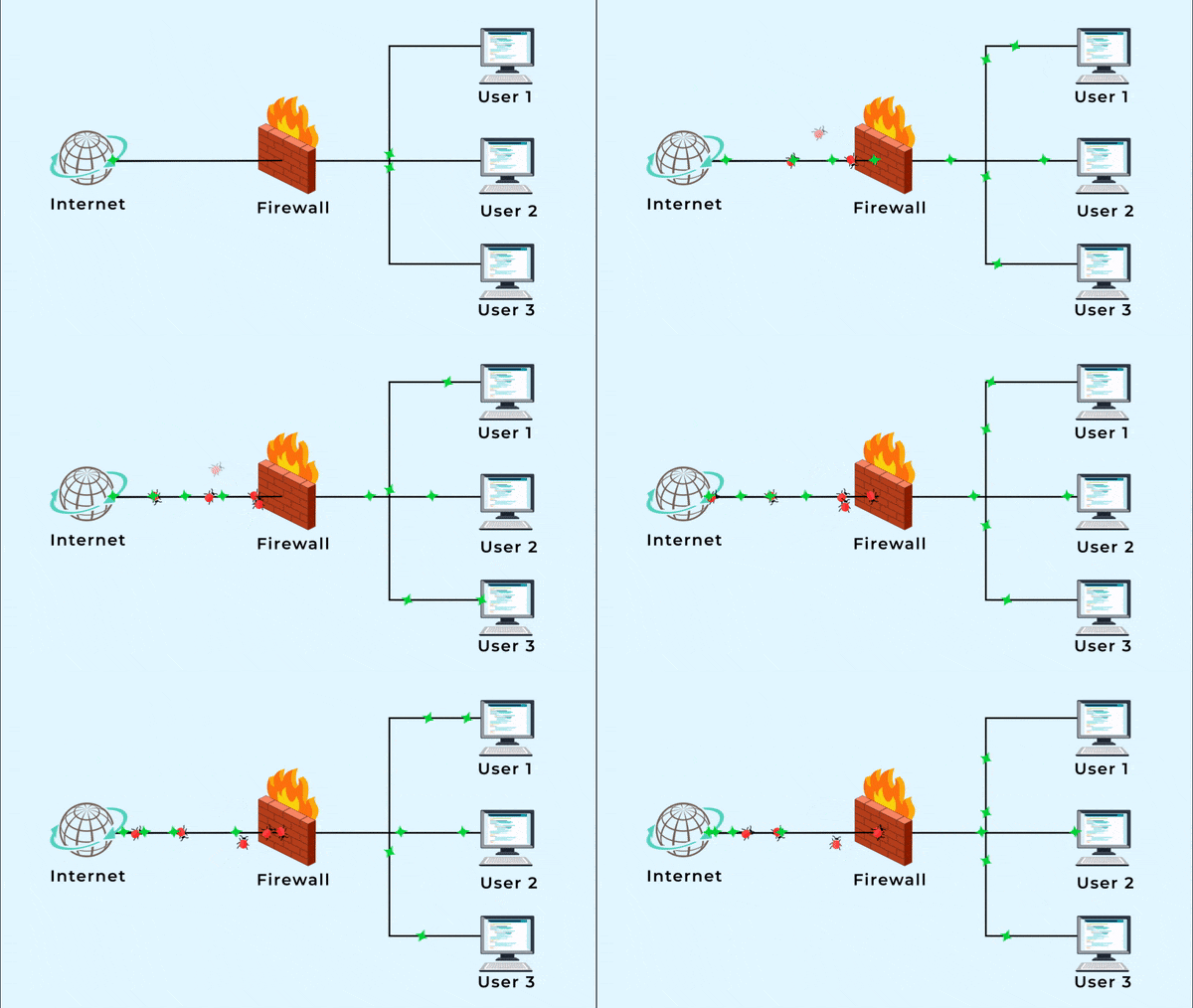
A firewall is an intermediary that separates your router from the external world. The majority of routers come with a built-in firewall, but it might not be turned on by default.
- You can enable this built-in router firewall within your configurations
- Think about installing additional firewall software on your devices.
- A firewall can block unauthorised access and harmful traffic
10. Disable Remote Management
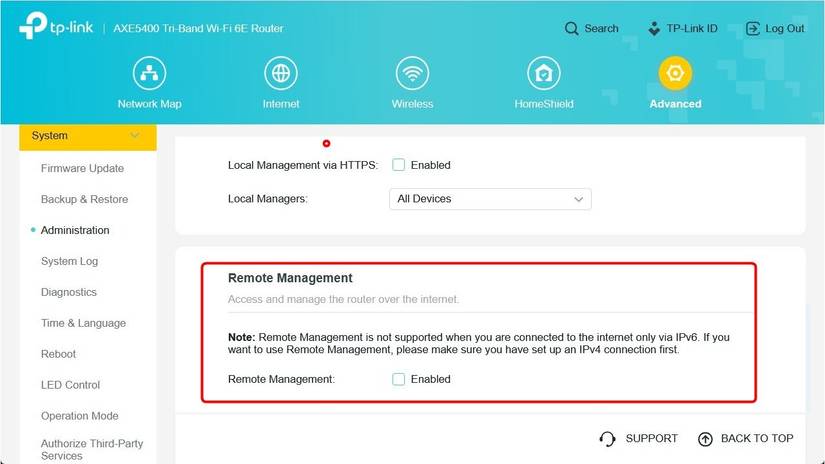
Remote management lets you connect to your router from outside of your home network. While it’s useful, it’s an extremely risky security feature in the event that it is not turned off.
If you don’t need this feature, you should always turn off remote management in your router’s settings to safeguard the WiFi connection from threats from outside.
11. Position Your Router Strategically
The location of your router is also a factor in the security of your network. If your WiFi signal extends far from your office or home, external users may try to connect.
Best practices:
- Set your router in the middle of your office or home
- Be sure to keep it out of windows and walls that are exterior
- This restricts signal reach beyond the boundaries of your space.
Also Read: Copier and Printer Repair in Chatsworth
Conclusion
Securing your WiFi network doesn’t have to be a hassle. By following these 11 easy steps, you will be able to significantly reduce the risk of unauthorized access to your network, data theft, and cyberattacks.
We at Geeks Worldwide Solutions, believe that technology should do the work for you – safely and efficiently. If you require assistance with setting up an effective WiFi network, troubleshooting issues with your router, or securing your business or home network, our knowledgeable team is available to help.
We’re dedicated to providing secure, reliable, and efficient IT and security solutions for networks. Security is our top priority, as it is the key to a secure life.
Reach out to Geeks Worldwide Solutions today and allow our experts to protect your digital life.

One Response