If Remote Desktop stopped connecting on your Windows 11 PC after this month’s update, install KB5129195 (or KB5129194 if you’re on 26H1). It fixes the Remote Desktop Services bug, along with a Hyper-V folder-sharing issue and one USB audio problem. It does not fix everything the September update broke — more on that below.
Why Did the September 2026 Update Break Remote Desktop?
The September 8, 2026 Patch Tuesday release, KB5124008, introduced a bug in Remote Desktop Services (RDS). On affected machines, RDP connections would drop after a few minutes, sign-in would fail, or the screen would freeze on “Please wait for the Remote Desktop Configuration.”
KB5124008 wasn’t a small patch. It carried fixes for more than 970 vulnerabilities across Microsoft’s product line, including two zero-days that were already being exploited. That scale is part of why the regression slipped through — and part of why Microsoft couldn’t just tell people to uninstall it.
The same update also broke Hyper-V folder sharing with Linux virtual machines, caused silent audio loss on some USB Audio Class 1.0 devices, and — on domain-joined machines — broke the secure channel used for authentication in some environments. Microsoft tracks the full, ongoing list of known issues on its Windows 11 release health status page, which is worth bookmarking during any patch cycle like this one.
How Do I Confirm Which Build I’m Running?
Before installing anything, check your current build so you install the right patch.
- Press Windows key + R, type winver, and hit Enter.
- Note the version (24H2, 25H2, or 26H1) and the build number shown.
- Compare it against the table below.
| Windows 11 version | Build before the fix | Update to install | Build after the fix |
| 26H1 | 28000.x | KB5129194 | 28000.2956 |
| 25H2 | 26200.x | KB5129195 | 26200.9457 |
| 24H2 | 26100.x | KB5129195 | 26100.9457 |
| 23H2 | earlier builds | KB5129242 | (23H2 branch) |
Windows Server and Windows 10 22H2 under Extended Security Updates were affected too and have their own out-of-band patches.
How Do I Install KB5129195?
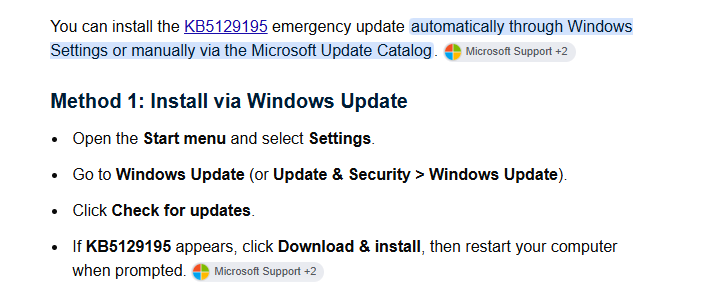
- Open Settings > Windows Update and click Check for updates. Microsoft is pushing this one automatically to most consumer PCs, so it may already be waiting.
- If it doesn’t appear, download the correct package for your build from the Microsoft Update Catalog and install it manually.
- Restart when prompted. This is a full cumulative update, not a hotpatch, so a restart is required.
- After the restart, re-run winver to confirm the build number matches the table above.
- Test your Remote Desktop connection from both directions — as the host and as the client — before assuming it’s resolved.
If your organization manages updates through Windows Update for Business or WSUS, KB5129195 is available there too, and IT can stage it without waiting for the automatic rollout. If you’d rather have someone handle staged rollout across multiple machines, see our managed Windows update service.
There’s also a hotpatch version, KB5129241, for devices enrolled in Microsoft’s hotpatch program. It applies on top of the security update without a restart, but it’s only available where hotpatching is already configured — most home and small-business PCs won’t see it.
Is It Safe to Just Skip the Update and Wait?
No. Skipping KB5124008 (or removing it) does bring Remote Desktop back for some people, but it also removes the fix for CVE-2026-62721, a privilege-escalation flaw in the Windows User-Mode Power Service. Microsoft’s original patch for that vulnerability was incomplete, and KB5129195 finishes the job — full details are on Microsoft’s official KB5129195 support page.
An attacker who already has local access to a machine could use that flaw to jump to SYSTEM-level privileges. Given that the same update also patched two actively exploited zero-days, rolling back and staying rolled back is a bigger risk than the RDP bug on any machine that’s reachable over a network.
What’s Still Broken After Installing KB5129195?
This update targets three specific issues. It doesn’t touch everything the September update caused:
- USB audio beyond Class 1.0. Some devices, plus a number of microphones, are still reported as silent or unresponsive.
- AMD Radeon graphics errors. Microsoft hasn’t shipped a fix for this yet. See our AMD graphics driver troubleshooting guide if this is affecting you.
- File Explorer crashes and File History failures, reported on a smaller subset of machines.
- Domain-joined authentication failures. On some networks, machines can no longer complete the secure channel handshake with their domain controller.
If you’re managing domain-joined devices, check Event ID 4625 in the Security log on your domain controllers, and run Test-ComputerSecureChannel on any machine that’s failing to authenticate. A result of False confirms the secure channel is broken, and a registry-based workaround exists as a temporary fix while Microsoft prepares a proper patch — but it needs to be applied per machine and isn’t something to do without backing up first. Our domain authentication repair walkthrough covers the exact registry steps.
When Should You Book On-Site Support Instead of Fixing It Yourself?
A single home PC that lost Remote Desktop is usually a five-minute fix: confirm the build, install the patch, restart, test. A few situations are worth getting a technician involved instead:
- You manage more than a handful of PCs and need to stage the update through WSUS or Intune rather than let it install one machine at a time.
- Domain-joined machines are showing authentication failures — this touches Active Directory and getting the registry workaround wrong can lock users out.
- Remote Desktop is used for a business-critical server (a POS system, an accounting workstation, a remote office link) where downtime during testing isn’t acceptable.
- You’ve already installed KB5129195 and Remote Desktop is still broken — at that point, the cause may not be the September update at all, and it’s worth having someone check firewall rules, network-level authentication settings, and RDP licensing separately.
If any of these apply, you can book a remote support session or, for on-site work on servers and multi-PC networks, request an on-site visit and we’ll take it from there.